Installation Methods
Docker
The easiest and most portable way to run Redis:
docker run -d --name redis-stack -p 6379:6379 -p 8001:8001 redis/redis-stack:latestThis starts:
- Redis Server on port
6379(for commands) - Redis Stack UI on port
8001(web dashboard)
Connect to CLI:
docker exec -it redis-stack redis-climacOS (Homebrew)
Install Redis using Homebrew:
# Install Redis
brew install redis

# Start Redis as a background service
brew services start redis

# Or run Redis manually (foreground)
redis-server
Connect to CLI:
redis-cliStop Redis:
brew services stop redisUbuntu / Debian (apt)
Install Redis from the official repository:
# Update package index
sudo apt update

# Install Redis
sudo apt install redis-server -y

# Start Redis service
sudo systemctl start redis-server

# Enable Redis to start on boot
sudo systemctl enable redis-server

# Check status
sudo systemctl status redis-server
Connect to CLI:
redis-cliConfiguration file: /etc/redis/redis.conf
CentOS / RHEL / Fedora (dnf/yum)
# For CentOS/RHEL 8+ or Fedora
sudo dnf install redis -y

# For CentOS/RHEL 7
sudo yum install epel-release -y
sudo yum install redis -y

# Start Redis
sudo systemctl start redis

# Enable on boot
sudo systemctl enable redis

# Check status
sudo systemctl status redis
Connect to CLI:
redis-cliWindows
Option A: WSL2 (Recommended)
Install Redis inside Windows Subsystem for Linux:
# In WSL2 Ubuntu terminal
sudo apt update
sudo apt install redis-server -y

# Start Redis
sudo service redis-server start

# Connect
redis-cli
Option B: Memurai (Native Windows)
Memurai is a Redis-compatible server for Windows:
- Download from https://www.memurai.com/get-memurai
- Run the installer
- Memurai runs as a Windows service automatically
# Connect using redis-cli (included)
redis-cli
Option C: Docker Desktop for Windows
docker run -d --name redis -p 6379:6379 redis:latest
docker exec -it redis redis-cli
Build from Source
For the latest version or custom builds:
# Install dependencies
sudo apt install build-essential tcl -y  # Ubuntu/Debian
# or
sudo dnf groupinstall "Development Tools" -y  # Fedora/CentOS

# Download and extract
wget https://download.redis.io/redis-stable.tar.gz
tar xzf redis-stable.tar.gz
cd redis-stable

# Compile
make
make test  # Optional but recommended

# Install (copies binaries to /usr/local/bin)
sudo make install

# Run Redis
redis-server

# In another terminal
redis-cli
Redis Cloud (Managed Service)
For production without infrastructure management:
- Sign up at redis.com/try-free
- Create a free database (30MB)
- Get your connection string:
redis-cli -h <your-endpoint> -p <port> -a <password>Or in your application:
redis://<username>:<password>@<endpoint>:<port>Verify Installation
Regardless of installation method:
PING
# Returns: PONG ✓
If you see PONG, Redis is running and ready.
Basic Commands
Redis stores key-value pairs. By convention, keys follow the pattern <entity>:<id> — Redis automatically groups keys by their prefix in tools like Redis Stack UI.
Example: Storing user names
| Key | Value |
|---|---|
user:1 | Mehedi |
user:2 | Hasan |
user:3 | John |
SET user:1 "Mehedi"
SET user:2 "Hasan"
SET user:3 "John"

GET user:1              # Returns: "Mehedi"
GET user:2              # Returns: "Hasan"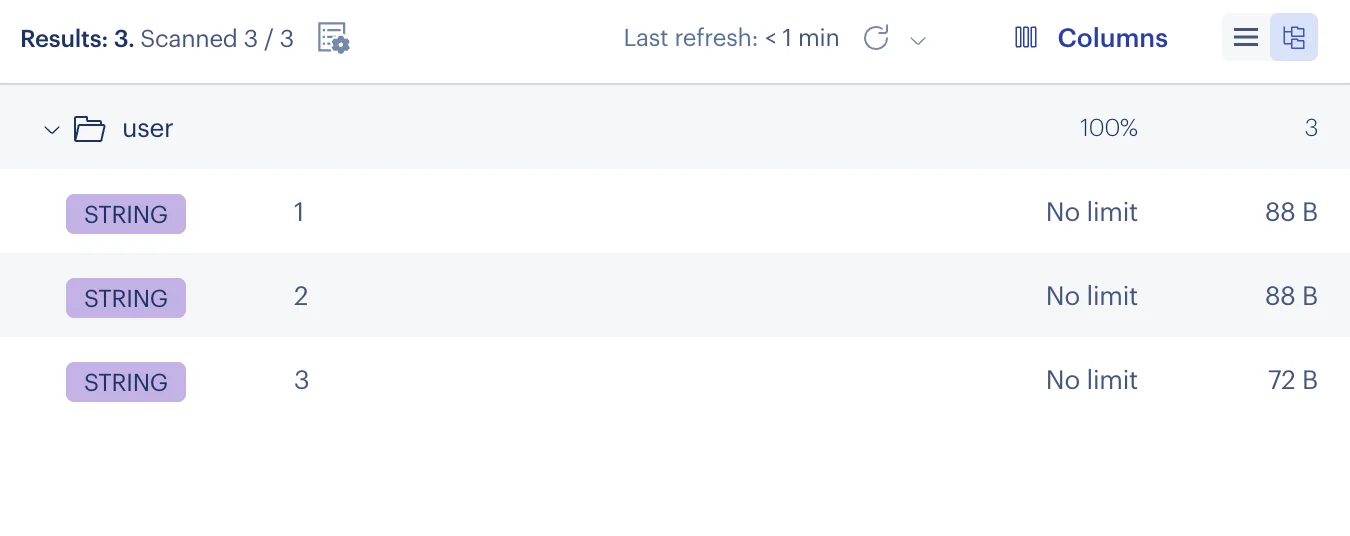
Redis stack UI after auto groupt based on user.
Configuration
Default Ports
- 6379 — Redis server
- 8001 — Redis Stack UI (Docker only)
- 16379 — Redis Cluster bus
Key Configuration Options
Edit /etc/redis/redis.conf (Linux) or pass flags:
# Bind to all interfaces (for remote access)
redis-server --bind 0.0.0.0

# Set password
redis-server --requirepass yourpassword

# Set max memory
redis-server --maxmemory 256mb

# Persist data
redis-server --appendonly yes
Connect with Password
redis-cli -a yourpassword
# or
redis-cli
AUTH yourpassword
Stopping Redis
Docker:
docker stop redis-stack
docker start redis-stack  # Restart
docker rm -f redis-stack  # Remove
macOS (Homebrew):
brew services stop redisLinux (systemd):
sudo systemctl stop redis-serverManual:
redis-cli SHUTDOWNAccess Redis Stack UI
If using Docker with redis-stack:
http://localhost:8001Features:
- Browse keys and values
- Execute commands
- Monitor performance
- Explore data structures visually